
Switching between user profiles on the Windows sign-in page is a quick and straightforward. It allows you to access different accounts on the same computer, each with its settings, files, and applications.
Here's a step-by-step guide on how to change user profiles from the sign-in page:
-
Reach the Sign-in Page
- If you are currently logged in, click on the Start button, then click on your user profile picture, and select Sign Out.
- If the computer is already on the lock screen, simply press any key or click the mouse to bring up the sign-in page.
-
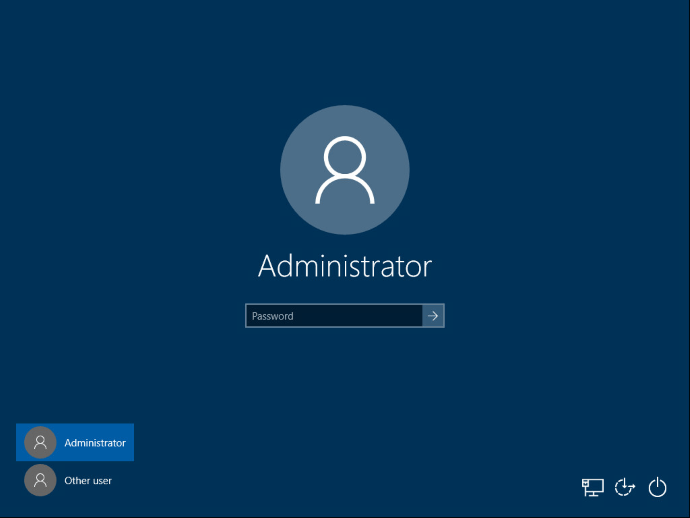
Select "Other User"
- On the sign-in page, you will typically see the profile picture and username of the last person who logged in.
- Below this, there should be an option that says "Other user" or something similar. Click on this option.
-
Enter Credentials
- You'll be presented with fields to enter the username and password of the user profile you wish to switch to.
- We’ve recently updated the login format for the username to be your first initial followed by your last name @archwayprograms.org(e.g., jdoe@archwayprograms.org).
-
Access the New Profile
- Windows will now load the desktop and settings associated with the user profile you just selected. You are now logged in to this account.
Important Notes
- Visibility of "Other User": In some Windows configurations, the "Other user" option might be hidden by default. If you don't see it, look for a small icon near the password field that, when clicked, reveals additional sign-in options, including "Other user".
- Multiple Users: If multiple user accounts are set up on the computer, you'll be able to choose from any of them on the sign-in page.
- Administrator Access: Some actions, like installing software or changing system settings, may require you to sign in with an administrator account.
Remember: Switching user profiles doesn't close any programs or files that are open in the previous user's session. They will remain running in the background. If you need to completely end a session, make sure to sign out of that profile properly before switching to another.
Comments
0 comments
Article is closed for comments.